


SitecoreAI Containers Without Docker Desktop
For local SitecoreAI containers, you might want to avoid Docker Desktop. Docker Desktop requires a paid subscription for organizations with more than 250 employees or an annual revenue of more than $10 million. So, can you run the XM Cloud local container stack without Docker Desktop at all?
The answer is yes. I went through Sitecore's official documentation, the starter kit repositories and every community walkthrough I could find. I was checking what's supported, what's community-derived and what's missing.
You can use this for a local Sitecore development environment if Docker Desktop isn't available, you don't want it, licensing restricts its use, or it's unstable. Install the standalone Docker Engine and run it directly as a Windows service. For Docker Compose, use the CLI plugin path that modern Docker tooling expects.
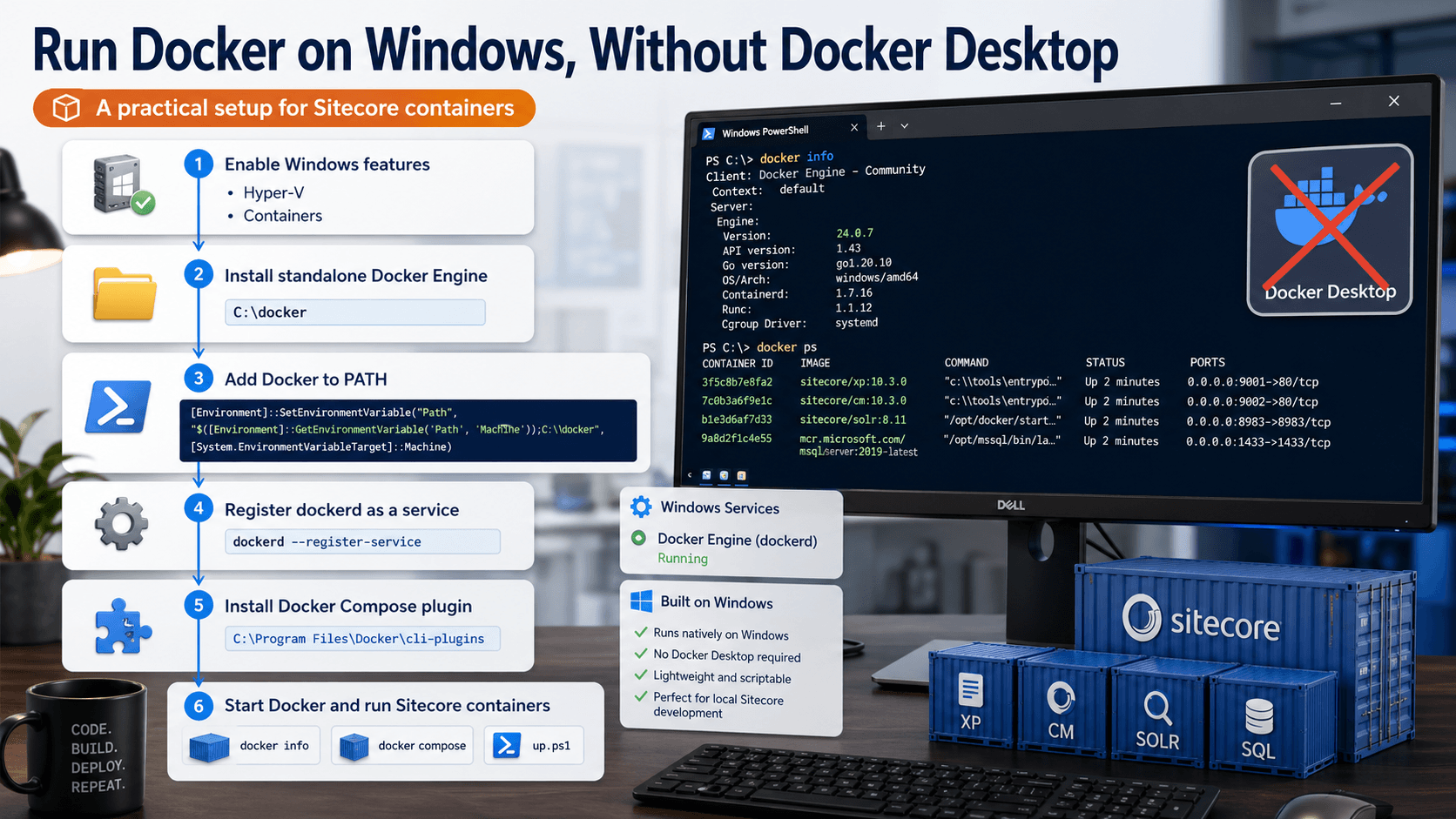
1. Already got Docker Desktop? Remove it first
Already have Docker Desktop installed? Stop it first. To replace it entirely, uninstall Docker Desktop before you install the standalone Docker Engine.
It's worth considering a cleanup of old Docker resources before you carry on, particularly if Windows container layers have taken up a lot of space.
For Docker daemon cleanup, Vikrant Punwatkar’s Docker cleanup guidance uses this longer shutdown timeout:
dockerd -D --shutdown-timeout 900
Docker may need that extra time to clean up large Windows container layers.
2. Enable required Windows features
These features are probably already available if you've used Docker Desktop. If they aren't, open PowerShell as Administrator and run:
Enable-WindowsOptionalFeature -Online -FeatureName Microsoft-Hyper-V -All
Enable-WindowsOptionalFeature -Online -FeatureName containers -All
Restart Windows if prompted.
You'll commonly need both Hyper-V and Containers for Windows container development.
3. Download standalone Docker Engine for Windows
Run PowerShell as Administrator:
curl.exe -o docker.zip -LO https://download.docker.com/win/static/stable/x86_64/docker-20.10.13.zip
Then extract the archive:
Expand-Archive docker.zip -DestinationPath C:\
You should now find the Docker binaries here:
C:\docker
4. Add Docker to PATH
In Administrator PowerShell, keep this command on a single line:
[Environment]::SetEnvironmentVariable("Path", "$([Environment]::GetEnvironmentVariable('Path', 'Machine'));C:\docker", [System.EnvironmentVariableTarget]::Machine)
The current shell still needs its path refreshed:
$env:Path = [System.Environment]::GetEnvironmentVariable("Path", "Machine")
Close and reopen PowerShell if docker still isn't recognized.
5. Register Docker daemon as a Windows service
To register Docker Engine as a Windows service, run:
dockerd --register-service
Now start the Docker service:
Start-Service docker
Check that Docker is running:
docker version
docker info
Try a basic container run:
docker run hello-world
6. Install Docker Compose v2 CLI plugin
First, create the Docker CLI plugin directory:
New-Item -ItemType Directory -Force -Path "C:\Program Files\Docker\cli-plugins"
Next, download Docker Compose v2:
curl.exe -L "https://github.com/docker/compose/releases/download/v2.18.1/docker-compose-windows-x86_64.exe" -o "C:\Program Files\Docker\cli-plugins\docker-compose.exe"
It also needs to be on PATH. Run the following PowerShell in admin mode:
$d='C:\Program Files\Docker\cli-plugins'; $m=((([Environment]::GetEnvironmentVariable('Path','Machine') -split ';') | ? { $_ -and $_ -ne "$d\docker-compose.exe" -and $_ -ne $d } | select -Unique) + $d) -join ';'; [Environment]::SetEnvironmentVariable('Path',$m,'Machine'); $env:Path=$m
Verify Compose:
docker compose version
docker-compose version
Use this plugin path:
C:\Program Files\Docker\cli-plugins\docker-compose.exe
With that path, docker compose works as a Docker CLI plugin.
7. Configure Docker daemon if needed
The file to create, or edit if it's already there, is:
C:\ProgramData\docker\config\daemon.json
Here's a safe starting point for many Sitecore Windows container setups:
{
  "experimental": true,
  "features": {
    "buildkit": false
  }
}
Once you've changed the daemon configuration, restart Docker:
Restart-Service docker
For Sitecore projects, experimental: true may be needed for a solution that mixes Windows and Linux containers. Some older Sitecore container setups do this.
8. Stop local IIS and Solr before starting Sitecore containers
Watch out for local IIS or Solr services: they can clash with the ports used by Sitecore containers.
Stop IIS:
iisreset /stop
For an installed local Solr Windows service, stop it through services.msc, or use its service name if you know it:
Stop-Service -Name "solr-*"
If the wildcard doesn't match your service, list the services first:
Get-Service *solr*
9. Run your Sitecore project
Which command you run from the project root depends on the project's structure.
The following may be what you need for many SitecoreAI local container setups.
If this is the first run, you must initialize it first:
cd .\local-containers\scripts
.\init.ps1 -InitEnv -LicenseXmlPath C:\Projects\license.xml -AdminPassword b -baseOs ltsc2022
After that, run the main script:
.\local-containers\scripts\up.ps1
Now sit comfortable, grab your coffee and wait until it pulls all the required images and runs:
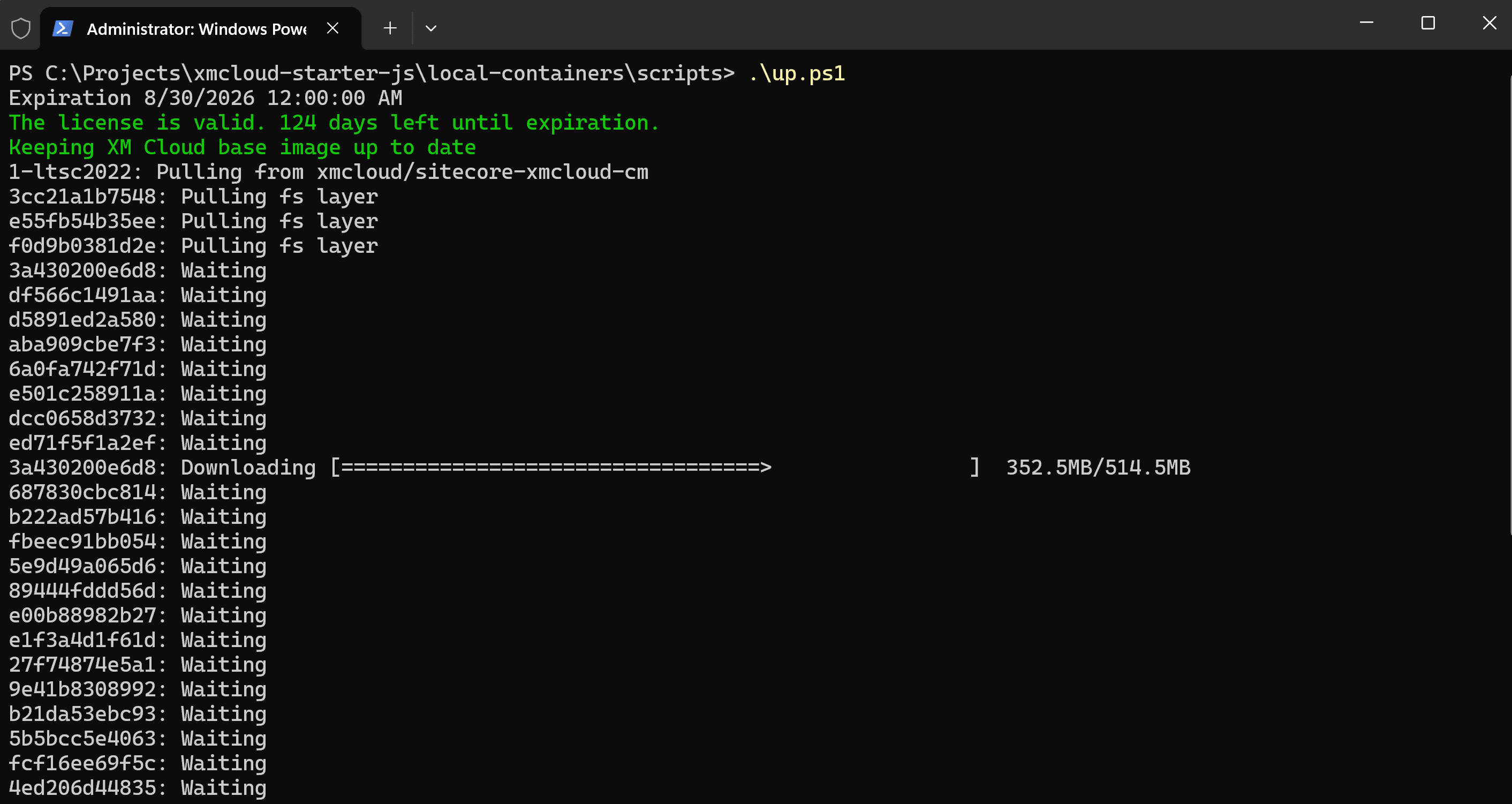
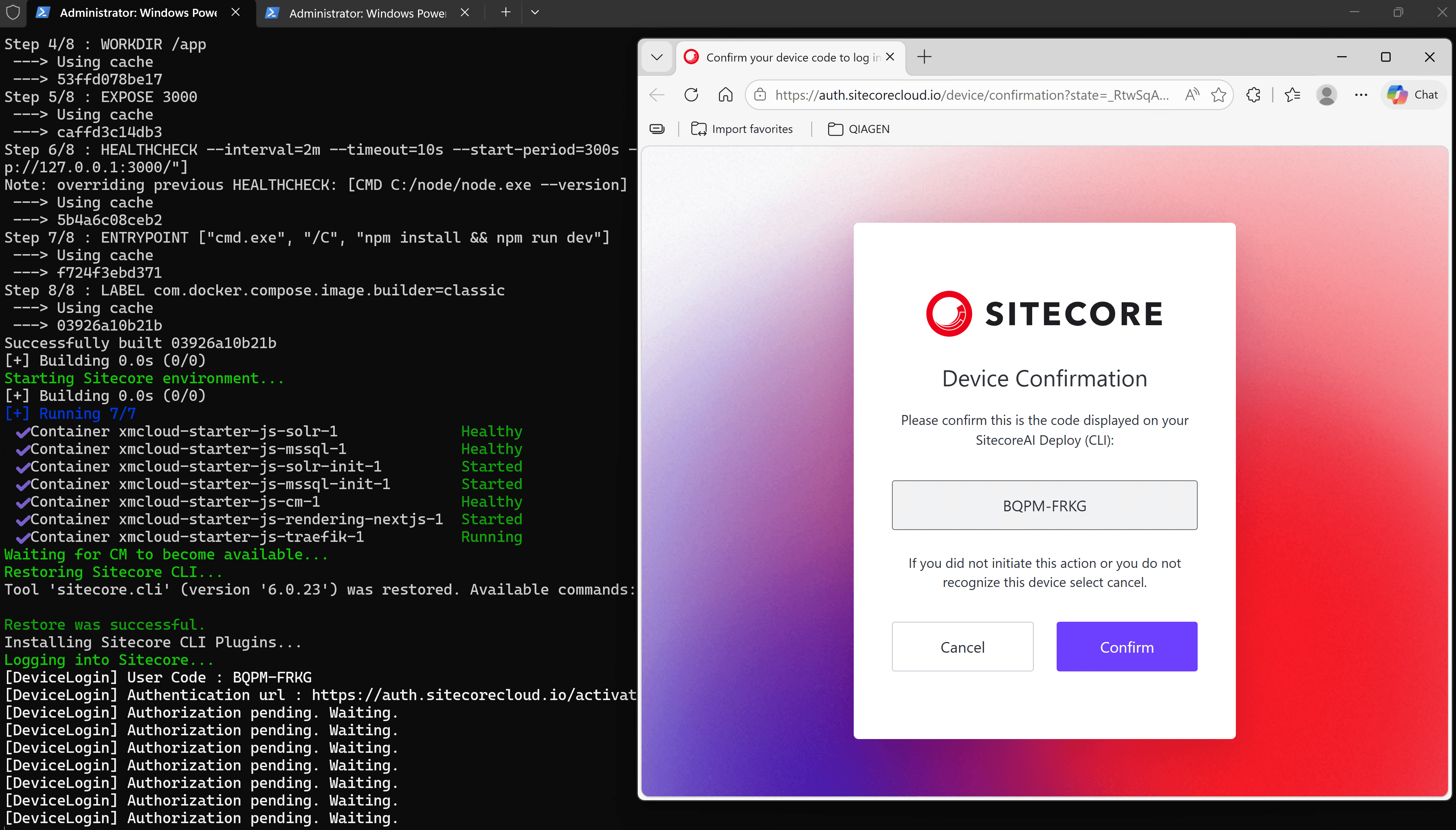
There can be quite a bit going on in a Sitecore local container startup script. It may:
- Pull or update images
- Build custom images
- Configure hosts file entries
- Start Docker Compose services
- Start the CM container
- Install Sitecore CLI plugins
- Populate Solr schemas
- Rebuild indexes
- Push serialized items
Troubleshooting checklist
I'd check admin mode before chasing any of the issues below. Make sure that's how you're running the scripts, especially on restricted corporate and enterprise machines.
Docker service does not start
First, check the service and start it:
Get-Service docker
Start-Service docker
Then check what Docker reports:
docker info
If Docker fails with references to panic.log, try removing this file and starting Docker again:
Remove-Item "C:\ProgramData\docker\panic.log" -Force
Start-Service docker
Docker command is not recognized
Is Docker in the machine PATH? Check it here:
[Environment]::GetEnvironmentVariable("Path", "Machine")
Also check that the binary is actually there:
dir C:\docker\docker.exe
Refresh the PATH in the current PowerShell session:
$env:Path = [System.Environment]::GetEnvironmentVariable("Path", "Machine")
Docker Compose is not recognized
Check that the plugin file is there:
dir "C:\Program Files\Docker\cli-plugins\docker-compose.exe"
Verify Compose:
docker compose version
Ports are already in use
Check common Sitecore container ports:
netstat -ano | findstr ":443"
netstat -ano | findstr ":8079"
netstat -ano | findstr ":8984"
netstat -ano | findstr ":14330"
If IIS is using port 443:
iisreset /stop
Windows container layers consume too much disk space
Rebuilding Sitecore containers over and over can leave Windows container layers piling up in Docker’s storage folders.
Here are the usual cleanup commands:
docker system df
docker system prune -a
When Windows layers are stubborn about cleanup, the Docker daemon may need a longer shutdown timeout:
dockerd -D --shutdown-timeout 900
Try Docker’s own cleanup commands first. Be careful if you do delete Docker layer folders by hand.