


How to run multiple SitecoreAI Docker instances simultaneously on a single host machine
If you've ever worked on multiple SitecoreAI (XM Cloud) projects at the same time, you know the pain. Often you have to terminate working on Project A, run docker compose down, wait, switch .env files, run docker compose up, wait some more... and then realize you need to quickly check something back in Project A. Rinse, repeat, lose your sanity. What a time waste!
What if I told you there's a way to run three completely independent XM Cloud Docker environments side by side, all on the same Windows machine, all accessible on standard HTTPS port 443, with full network isolation between for each of them?
Let's dig into how I made it work.
The Problem - Why Can't We Just Run Three Docker Compose Stacks?
At first glance, running three copies of the XM Cloud starter kit seems straightforward. Clone the repo three times, change some ports, and done. Right?
Not quite. There are two showstoppers:
1. The Hostname Lock-In
Sitecore's XM Cloud identity server (Auth0) expects callbacks to xmcloudcm.localhost or *.xmcloudcm.localhost. This is hardcoded on their end. Every single CM instance in the standard setup uses xmcloudcm.localhost as its hostname. If three CM containers all claim the same hostname, only one wins.
2. The Traefik Port War
The Traefik reverse proxy in each codebase is set up for port 443 and port 8079. The first one starts; Docker rejects the rest because the ports are already in use.
There are further collisions for MSSQL at port 14330 and Solr at port 8984.
The Solution - A Shared Traefik Gateway with Subdomain Routing
These are the three parts of the setup I used:
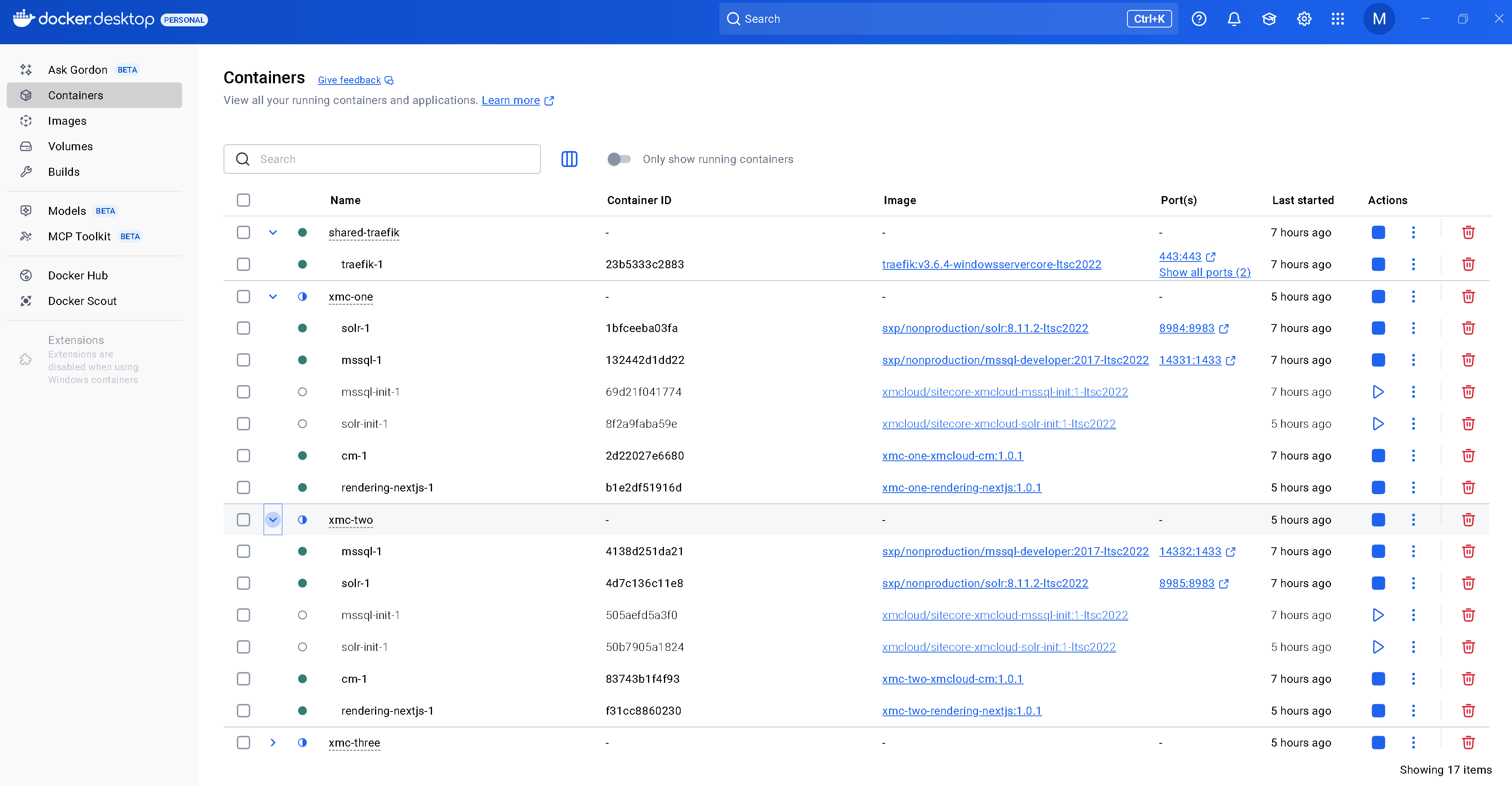
One Traefik to rule them all. Instead of three competing Traefik instances, we run a single shared Traefik at the root level that acts as the gateway for all environments.
Third-level subdomains for CM. Auth0 already allows *.xmcloudcm.localhost. That allows us to use one.xmcloudcm.localhost, two.xmcloudcm.localhost, and three.xmcloudcm.localhost. All three hostnames use one wildcard TLS certificate. This is the configuration for each codebase:
  ┌────────────┬─────────────────────────────────────────────┬────────────┬───────────┐
  │  Codebase  │                 CM Hostname                 │ MSSQL Port │ Solr Port │
  ├────────────┼─────────────────────────────────────────────┼────────────┼───────────┤
  │ codebase-1 │ https://one.xmcloudcm.localhost/sitecore/   │ 14331      │ 8984      │
  ├────────────┼─────────────────────────────────────────────┼────────────┼───────────┤
  │ codebase-2 │ https://two.xmcloudcm.localhost/sitecore/   │ 14332      │ 8985      │
  ├────────────┼─────────────────────────────────────────────┼────────────┼───────────┤
  │ codebase-3 │ https://three.xmcloudcm.localhost/sitecore/ │ 14333      │ 8986      │
  └────────────┴─────────────────────────────────────────────┴────────────┴───────────┘
A shared bridge network for Traefik routing. CM and rendering containers from each codebase join the same nat network. Traefik uses that network to reach them; the internal infrastructure (MSSQL, Solr) remains isolated on each project's default network.
The connections between the gateway and the codebases look like this:
                     +----------------------+
                     |   Shared Traefik     |
                     |   Port 443 / 8079    |
                     +--+-------+-------+---+
                        |       |       |
                   traefik-shared (nat network)
                        |       |       |
   +----------+--+  +---+------+---+  +--+----------+
   | codebase-1  |  | codebase-2   |  | codebase-3  |
   |  xmc-one    |  |  xmc-two     |  |  xmc-three  |
   | MSSQL:14331 |  | MSSQL:14332  |  | MSSQL:14333 |
   | Solr:8984   |  | Solr:8985    |  | Solr:8986   |
   +-------------+  +--------------+  +-------------+
And the hostname mapping should loke as:
  ┌─────────────┬─────────────────────────────────────────────┐
  │   Service   │                  Hostname                   │
  ├─────────────┼─────────────────────────────────────────────┤
  │ CM 1        │ https://one.xmcloudcm.localhost/sitecore/   │
  ├─────────────┼─────────────────────────────────────────────┤
  │ CM 2        │ https://two.xmcloudcm.localhost/sitecore/   │
  ├─────────────┼─────────────────────────────────────────────┤
  │ CM 3        │ https://three.xmcloudcm.localhost/sitecore/ │
  ├─────────────┼─────────────────────────────────────────────┤
  │ Rendering 1 │ https://nextjs.xmc-one.localhost/           │
  ├─────────────┼─────────────────────────────────────────────┤
  │ Rendering 2 │ https://nextjs.xmc-two.localhost/           │
  ├─────────────┼─────────────────────────────────────────────┤
  │ Rendering 3 │ https://nextjs.xmc-three.localhost/         │
  └─────────────┴─────────────────────────────────────────────┘
What We Need to Change
I needed only a few changes to get this in place. Here is what I changed.
Step 1: The Shared Traefik
I put a shared-traefik folder at the root of the multi-docker directory and gave it its own docker-compose.yml:
services:
  traefik:
    isolation: hyperv
    image: traefik:v3.6.4-windowsservercore-ltsc2022
    command:
      - "--ping"
      - "--api.insecure=true"
      - "--providers.docker.endpoint=npipe:////./pipe/docker_engine"
      - "--providers.docker.exposedByDefault=false"
      - "--providers.file.directory=C:/etc/traefik/config/dynamic"
      - "--entryPoints.websecure.address=:443"
      - "--entryPoints.websecure.forwardedHeaders.insecure"
    ports:
      - "443:443"
      - "8079:8080"
    healthcheck:
      test: ["CMD", "traefik", "healthcheck", "--ping"]
    volumes:
      - source: \\.\pipe\docker_engine\
        target: \\.\pipe\docker_engine\
        type: npipe
      - ./traefik:C:/etc/traefik
    networks:
      - traefik-shared

networks:
  traefik-shared:
    name: traefik-shared
    external: true
A single Traefik connects to the Docker engine through a Windows named pipe; this connection lets it discover all containers across all Compose projects; it uses the traefik-shared network to reach the CM and rendering containers.
Before starting Traefik, create the shared network with the Windows nat driver:
docker network create -d nat traefik-shared
Why nat and not bridge? Windows containers do not support the bridge driver. Running docker network create traefik-shared without -d nat produces this error: "could not find plugin bridge in v1 plugin registry". I ran into this early on.
For TLS, I referenced wildcard certificates in shared-traefik/traefik/config/dynamic/certs_config.yaml:
tls:
  certificates:
    - certFile: C:\etc\traefik\certs\_wildcard.xmcloudcm.localhost.pem
      keyFile: C:\etc\traefik\certs\_wildcard.xmcloudcm.localhost-key.pem
    - certFile: C:\etc\traefik\certs\_wildcard.xmc-one.localhost.pem
      keyFile: C:\etc\traefik\certs\_wildcard.xmc-one.localhost-key.pem
    - certFile: C:\etc\traefik\certs\_wildcard.xmc-two.localhost.pem
      keyFile: C:\etc\traefik\certs\_wildcard.xmc-two.localhost-key.pem
    - certFile: C:\etc\traefik\certs\_wildcard.xmc-three.localhost.pem
      keyFile: C:\etc\traefik\certs\_wildcard.xmc-three.localhost-key.pem
Step 2: Parameterize the Traefik Labels
The most important and most subtle change to the existing codebase was prefixing the router, middleware and service names:
With the Docker provider, Traefik takes container labels to build its routing table. The stock docker-compose.yml contains these CM labels:
- "traefik.http.routers.cm-secure.rule=Host(`${CM_HOST}`)"The router name cm-secure is hardcoded. If three CM containers all define cm-secure, Traefik merges them into a single router with unpredictable results.
The fix is elegant: prefix every router, middleware, and service name with ${COMPOSE_PROJECT_NAME}:
- "traefik.http.routers.${COMPOSE_PROJECT_NAME}-cm-secure.rule=Host(`${CM_HOST}`)"Since each codebase has a unique COMPOSE_PROJECT_NAME in its .env (e.g., xmc-one, xmc-two, xmc-three), the router names become xmc-one-cm-secure, xmc-two-cm-secure, etc. Globally unique. Zero conflicts.
Make this change throughout the Traefik label lines in both docker-compose.yml (CM labels) and docker-compose.override.yml (rendering host labels).
I parameterized the host ports for MSSQL and Solr as well:
# Was: "14330:1433"
ports:
  - "${MSSQL_PORT:-14330}:1433"
The :-14330 default means if you don't set MSSQL_PORT, nothing changes. Backward compatible.
Step 3: The Multi-Instance Override
Each codebase gets a docker-compose.multi.yml that does three things:
- Disables the per-codebase Traefik (since the shared one handles everything)
- Connects CM and rendering to the shared Traefik network
- Passes the site name to the rendering container
services:
  traefik:
    deploy:
      replicas: 0

  cm:
    labels:
      - "traefik.docker.network=traefik-shared"
    networks:
      - default
      - traefik-shared

  rendering-nextjs:
    environment:
      NEXT_PUBLIC_DEFAULT_SITE_NAME: ${SITE_NAME:-xmc-one}
    labels:
      - "traefik.docker.network=traefik-shared"
    networks:
      - default
      - traefik-shared

networks:
  traefik-shared:
    name: traefik-shared
    external: true
The traefik.docker.network label tells the shared Traefik which network to use for the route to this container. Otherwise Traefik may choose the wrong network and fail silently.
This file is loaded automatically via the COMPOSE_FILE variable in .env:
COMPOSE_FILE=docker-compose.yml;docker-compose.override.yml;docker-compose.multi.yml
Windows gotcha: The COMPOSE_FILE variable uses this separator on Windows: ; (semicolon), not : (colon). Colons produce the CreateFile ... The filename, directory name, or volume label syntax is incorrect error. I took longer to find that separator problem than I wanted to.
Step 4: Per-Codebase .env Configuration
Each codebase's .env gets a handful of unique values:
| Variable | codebase-1 | codebase-2 | codebase-3 |
COMPOSE_PROJECT_NAME | xmc-one | xmc-two | xmc-three |
CM_HOST | one.xmcloudcm.localhost | two.xmcloudcm.localhost | three.xmcloudcm.localhost |
RENDERING_HOST_NEXTJS | nextjs.xmc-one.localhost | nextjs.xmc-two.localhost | nextjs.xmc-three.localhost |
MSSQL_PORT | 14331 | 14332 | 14333 |
SOLR_PORT | 8984 | 8985 | 8986 |
SITE_NAME | xmc-one | xmc-two | xmc-three |
Do not forget SITECORE_FedAuth_dot_Auth0_dot_RedirectBaseUrl - it must match the CM hostname, for example:
SITECORE_FedAuth_dot_Auth0_dot_RedirectBaseUrl=https://one.xmcloudcm.localhost/
Step 5: The Hosts File
This is pretty simple - just add these entries to C:\Windows\System32\drivers\etc\hosts:
127.0.0.1	one.xmcloudcm.localhost
127.0.0.1	two.xmcloudcm.localhost
127.0.0.1	three.xmcloudcm.localhost
127.0.0.1	nextjs.xmc-one.localhost
127.0.0.1	nextjs.xmc-two.localhost
127.0.0.1	nextjs.xmc-three.localhost
Step 6: Fix up.ps1
The up.ps1 script has a Traefik health check that uses the hardcoded router name cm-secure@docker. Since we parameterized it, we need to read COMPOSE_PROJECT_NAME and use it:
$composeProjectName = ($envContent | Where-Object {
    $_ -imatch "^COMPOSE_PROJECT_NAME=.+"
}).Split("=")[1]

# Updated health check
$status = Invoke-RestMethod "http://localhost:8079/api/http/routers/$composeProjectName-cm-secure@docker"
And the hardcoded Start-Process https://xmcloudcm.localhost/sitecore/ becomes:
Start-Process "https://$xmCloudHost/sitecore/"
Making the Next.js Rendering Hosts Work
Getting the CM to respond on a subdomain was easier than making the Next.js rendering hosts work.
The "Configuration error" Wall
Once the CM instances were responding on their subdomains, I moved on to the rendering hosts. In each codebase, the rendering-nextjs container mounts the Next.js app from examples/basic-nextjs and runs npm install && npm run dev as its entrypoint. All three containers crashed immediately with this error:
Error: Configuration error: provide either Edge contextId or
local credentials (api.local.apiHost + api.local.apiKey).
The stock sitecore.config.ts contains only defineConfig({{}}), with no API configuration. Although that is enough for an XM Cloud Edge connection in production, local Docker mode requires the Content SDK's build tools to know where the CM is.
Add the api.local block:
import { defineConfig } from '@sitecore-content-sdk/nextjs/config';

export default defineConfig({
  api: {
    local: {
      apiKey: process.env.SITECORE_API_KEY || '',
      apiHost: process.env.SITECORE_API_HOST || '',
    },
  },
  defaultSite: process.env.NEXT_PUBLIC_DEFAULT_SITE_NAME || 'xmc-one',
  defaultLanguage: 'en',
});
The SITECORE_API_HOST is set to http://cm by the compose override (the internal Docker DNS name for the CM container), and SITECORE_API_KEY comes from the .env file. So far so good.
The "Invalid API Key" Surprise
With the config in place, I restarted the rendering containers. They got further this time - the SDK successfully connected to the CM - but then:
ClientError: Provided SSC API keyData is not valid.
Here's the thing about Sitecore API keys: having a GUID in your .env file is not enough; that GUID must be registered as an item inside Sitecore's content tree at /sitecore/system/Settings/Services/API Keys/. Without it, Sitecore rejects the key outright.
The standard up.ps1 flow registers the key through the Sitecore CLI's serialization push. Run it separately for each of the three parallel instances:
cd codebase-1
dotnet sitecore cloud login                    # Browser auth required
dotnet sitecore connect --ref xmcloud `
  --cm https://one.xmcloudcm.localhost `
  --allow-write true -n default

& ./local-containers/docker/build/cm/templates/import-templates.ps1 `
  -RenderingSiteName 'xmc-one' `
  -SitecoreApiKey 'c46d10a5-9d62-4aa9-a83d-3e20a34bc981'
This creates the API key item under /sitecore/system/Settings/Services/API Keys/xmc-one with CORS and controller access set to *. Browser login uses the interactive Auth0 device flow. It is needed only once per codebase.
The "//en" Path Mismatch Mystery
Once the API keys were registered and the containers restarted, the rendering hosts started. Next.js reported Ready in 6.2s; I opened https://nextjs.xmc-one.localhost/ in the browser and got "Page not found."
The container logs showed this:
[Error: Requested and resolved page mismatch: //en /en]
GET / 404 in 53ms
The double slash in //en pointed to a path-resolution problem between the Content SDK's multisite and locale middleware; the locale middleware added /en to the path /, but no defaultSite was configured; the multisite resolver therefore could not determine which site to use, and produced the double-slash path.
Two changes fixed it:
- Set
defaultSiteinsitecore.config.ts(as above), so the SDK knows which Sitecore site to resolve by default - Pass
NEXT_PUBLIC_DEFAULT_SITE_NAMEto the rendering container as an environment variable indocker-compose.multi.yml
The Hostname Binding
The path mismatch was fixed, but I still had a 404 from the rendering host. I used this request to verify that the CM's layout service was responding correctly:
curl -sk "https://one.xmcloudcm.localhost/sitecore/api/layout/render/jss?item=/&sc_apikey=&sc_site=xmc-one&sc_lang=en"
That returned valid JSON with the Home page route data. So the CM was fine. The problem was in Sitecore's site resolution.
In the Sitecore Content Editor, each site has a Site Grouping item with a Hostname field. This field tells Sitecore which incoming hostname maps to which site. Without it, when the rendering host queries the CM for layout data, Sitecore does not know which site the request is for.
The fix: go to each CM's Content Editor and set the Hostname to the rendering host's domain:
xmc-onesite -> Hostname:nextjs.xmc-one.localhostxmc-twosite -> Hostname:nextjs.xmc-two.localhostxmc-threesite -> Hostname:nextjs.xmc-three.localhost
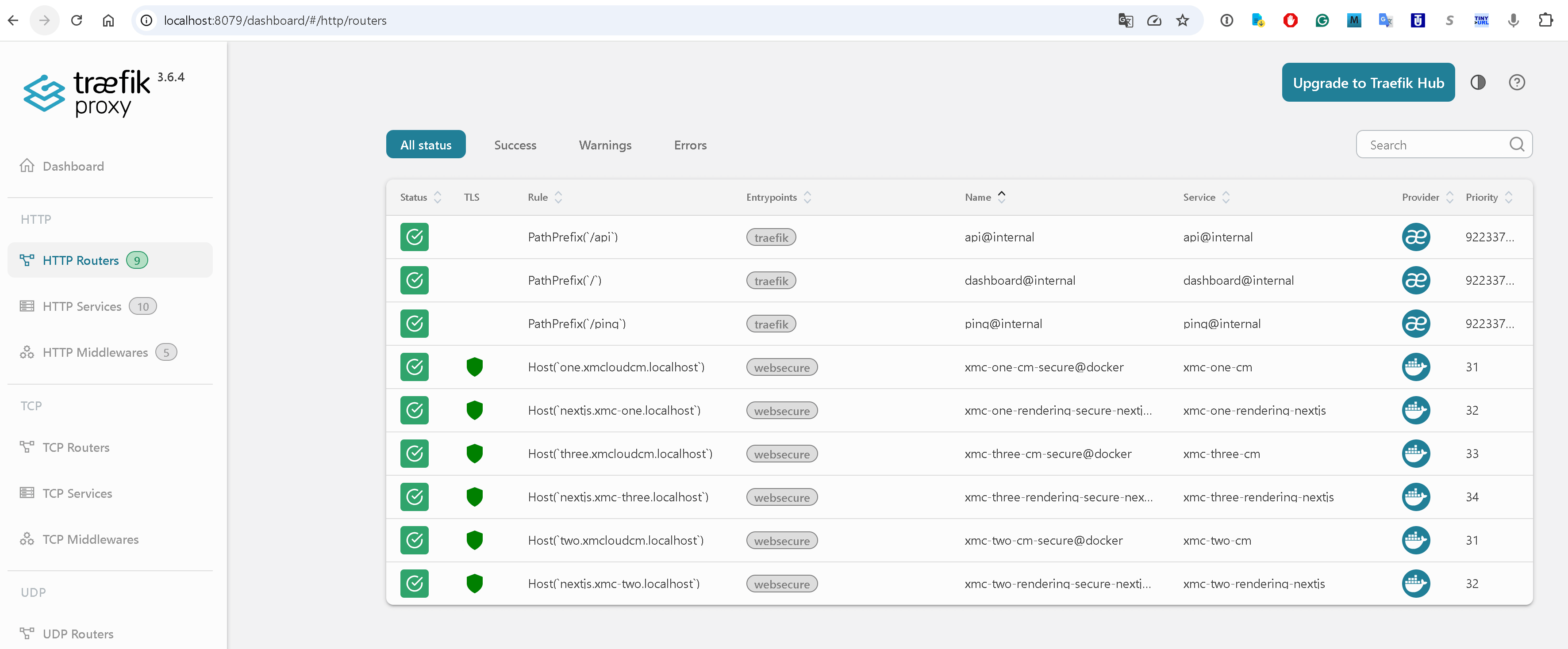
After that, all three rendering hosts returned HTTP 200, each serving content from their respective Sitecore instance. Three independent XM Cloud stacks, all running in parallel, all on standard HTTPS.
Running It All
First-Time Setup
# Run as Administrator
cd C:\Projects\SHIFT-AI\Multiple-Docker
.\setup-multi.ps1
This creates the Docker network, generates wildcard TLS certificates with mkcert, and updates the hosts file.
Then initialize each codebase (if not already done):
cd codebase-1\local-containers\scripts
.\init.ps1 -InitEnv -LicenseXmlPath C:\License\license.xml -AdminPassword "YourPassword"
# Repeat for codebase-2 and codebase-3
Daily Usage
# Start everything
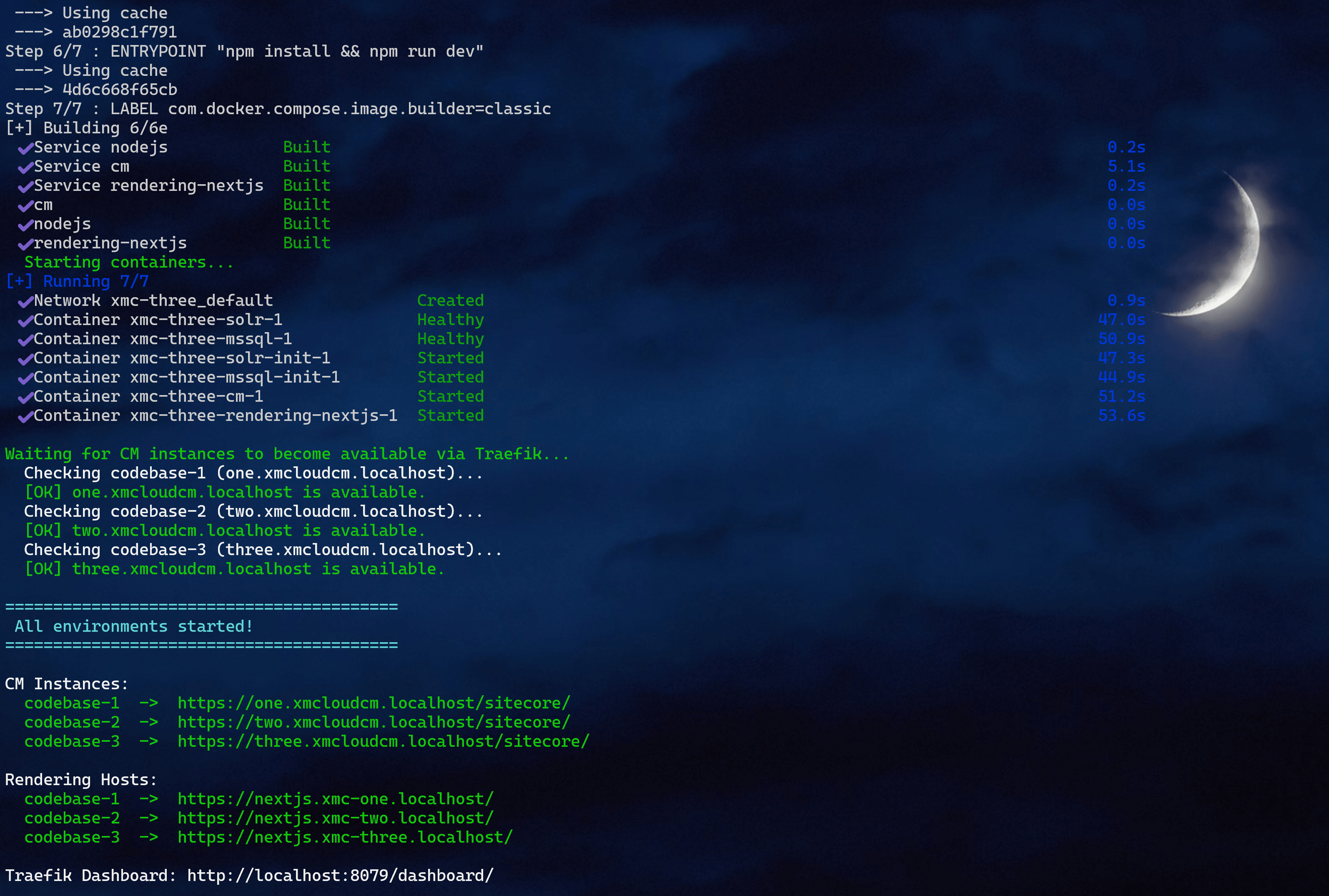
.\start-all.ps1

# Start just one codebase
.\start-all.ps1 -Codebases @("codebase-2")

# Stop everything
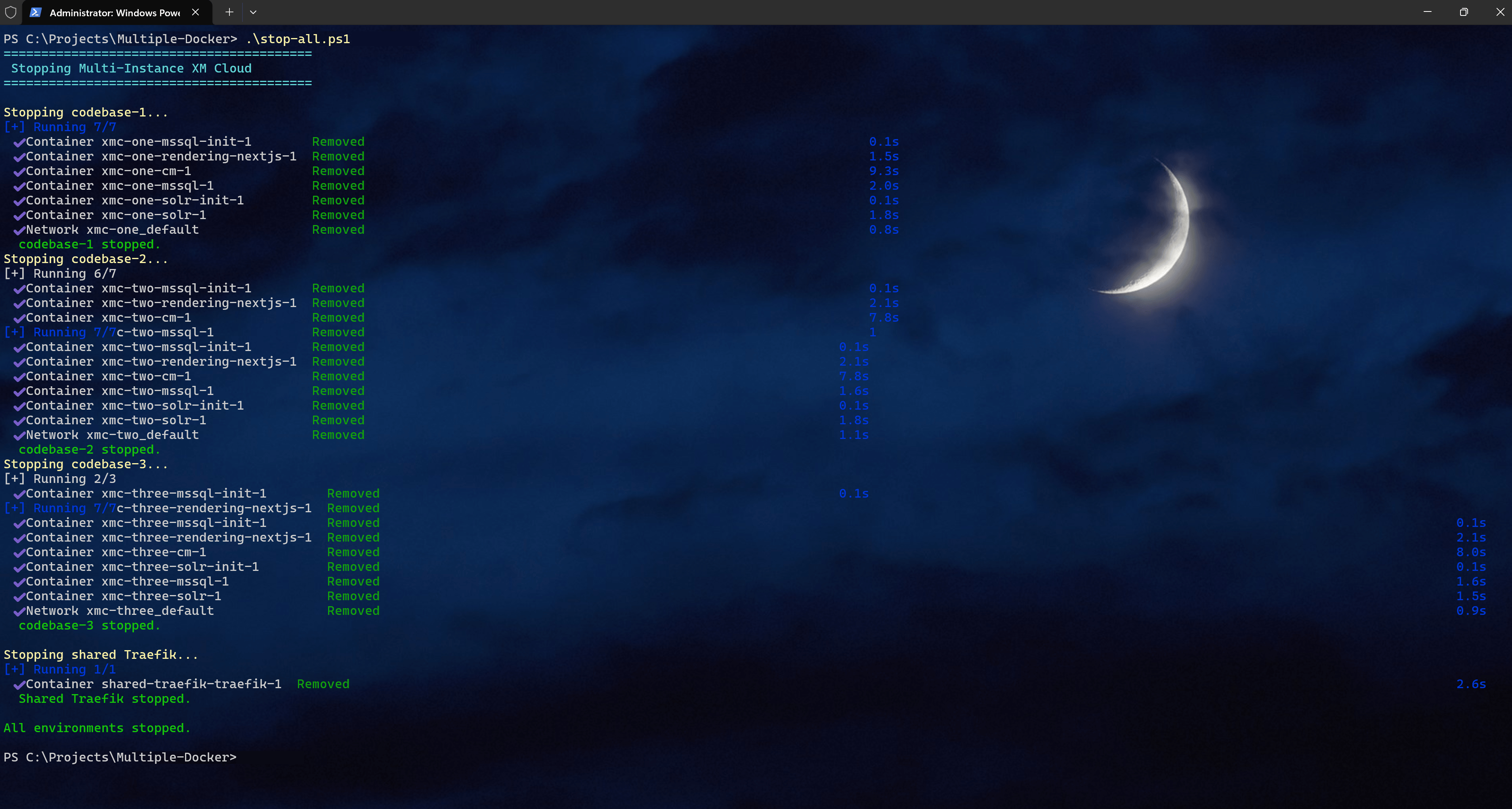
.\stop-all.ps1

# Stop codebases but keep Traefik running (faster restarts)
.\stop-all.ps1 -KeepTraefik
Post-Startup: Register API Keys and Create Sites
After the CMs are healthy, you need to register the API keys and create sites with hostname bindings (see the sections above). This is a one-time step per codebase.
Verifying It Works
Check the Traefik Dashboard
Open http://localhost:8079/dashboard/ before the public hosts. It is my quick sanity check for the shared gateway. Expect six routers: a CM router and a rendering router per codebase, each with its unique prefix. Seeing both routes for every project tells me that discovery worked; it does not yet prove that the page content is correct. The dashboard helps separate a routing problem from a page problem. If a router is missing, I check its labels and network attachment before testing the URLs below. Once the six entries are present, I use the browser checks below to see whether the redirects and home pages respond.
Hit Each CM Instance
https://one.xmcloudcm.localhost/sitecore/-> Auth0 login redirecthttps://two.xmcloudcm.localhost/sitecore/-> Auth0 login redirecthttps://three.xmcloudcm.localhost/sitecore/-> Auth0 login redirect
Hit Each Rendering Host
https://nextjs.xmc-one.localhost/should return the site home page (HTTP 200).https://nextjs.xmc-two.localhost/-> Site home page (HTTP 200)https://nextjs.xmc-three.localhost/-> Site home page (HTTP 200)
Each should serve its Sitecore content from an independent CM, MSSQL, and Solr instance; all three should respond.
Lessons Learned
Windows Docker networking has its own rules. The driver is nat; several nat networks on one container are unreliable. I dropped my three Traefik networks and used one shared nat network. CM and rendering containers use it; MSSQL and Solr stay on project-default networks.
COMPOSE_FILE uses semicolons on Windows. Linux: COMPOSE_FILE=a.yml:b.yml:c.yml. Windows: a.yml;b.yml;c.yml. Colons produce a cryptic CreateFile ... volume label syntax error.
Traefik label names are global. The Docker provider sees every router name. Two containers using one name can make Traefik resolve the collision incorrectly. Prefix each with ${COMPOSE_PROJECT_NAME}; I will use that pattern in future multi-project Docker and Traefik setups.
Docker Compose labels are merged, not replaced. An override keeps base labels; it can add labels but cannot remove them. Changing the base file is cleaner.
sitecore.config.ts needs explicit local API config. The stock defineConfig({{}}) assumes Edge. Local Docker needs api.local.apiKey and api.local.apiHost; without them, the Content SDK build tools (sitecore-tools project build) stop.
The defaultSite setting prevents the //en mismatch. Without it, multisite and locale middleware produce //en rather than /en; valid CM content still returns 404. Setting defaultSite with NEXT_PUBLIC_DEFAULT_SITE_NAME fixes it.
Sitecore must have the API key registered, not only present in .env. The GUID in SITECORE_API_KEY_APP_STARTER must also be a Sitecore item under /sitecore/system/Settings/Services/API Keys/. The same GUID is registered by import-templates.ps1 and dotnet sitecore ser push.
Sitecore sites need hostname bindings. API keys and config do not prevent a 404 until the site's Hostname field in Sitecore matches its rendering host. The CM's layout service uses that binding.
What Could Be Simplified Further
- Template-driven .env generation: generate
.envfiles for N codebases, not only three. - Compose profiles: use Docker Compose profiles to switch modes instead of
deploy.replicas: 0. - Single-codebase fallback: remove
COMPOSE_FILEfrom.envto restore standalone mode. - Automated API key registration: one script can generate, register, and configure the key for each codebase.
The total change is about 10 lines per codebase in the Docker compose files, one sitecore.config.ts update, and a handful of infrastructure files at the root.
If you've been juggling multiple XM Cloud projects and constantly stopping and starting Docker environments, I hope this saves you some time and frustration. The checks above are the places I would start: the network driver, the file separator, the router names, the local API settings, key registration, and hostname binding. The linked example is the starting point I used while putting the three environments together. It still needs fine tuning, but it shows the shape of the solution and the checks that made the three hosts respond. Drop a comment if you've found other approaches or run into edge cases - I'd love to hear about them. That is the whole idea. Keep the first run small. Check one route, then the next. It keeps some backtracking out of the process. It was enough to make the setup usable. I would start there.
GitHub (not fully operable, must be fine-tuned in some way)