If you've ever worked on multiple SitecoreAI (XM Cloud) projects at the same time, you know the pain. Often you have to terminate working on Project A, run docker compose down, wait, switch .env files, run docker compose up, wait some more... and then realize you need to quickly check something back in Project A. Rinse, repeat, lose your sanity. What a time waste!
What if I told you there's a way to run three completely independent XM Cloud Docker environments side by side, all on the same Windows machine, all accessible on standard HTTPS port 443, with full network isolation between for each of them?
Let's dig into how I made it work.
The Problem - Why Can't We Just Run Three Docker Compose Stacks?
At first glance, running three copies of the XM Cloud starter kit seems straightforward. Clone the repo three times, change some ports, and done. Right?
Not quite. There are two showstoppers:
1. The Hostname Lock-In
Sitecore's XM Cloud identity server (Auth0) expects callbacks to xmcloudcm.localhost or *.xmcloudcm.localhost. This is hardcoded on their end. Every single CM instance in the standard setup uses xmcloudcm.localhost as its hostname. If three CM containers all claim the same hostname, only one wins.
2. The Traefik Port War
Each codebase ships with its own Traefik reverse proxy, and all of them want port 443 and port 8079. Docker will happily start the first one and reject the rest due to a port conflict.
And there are secondary conflicts too - MSSQL (port 14330) and Solr (port 8984) also collide.
The Solution - A Shared Traefik Gateway with Subdomain Routing
The architecture I landed on is built around three key ideas:
One Traefik to rule them all. Instead of three competing Traefik instances, we run a single shared Traefik at the root level that acts as the gateway for all environments.
Third-level subdomains for CM. Since Auth0 accepts *.xmcloudcm.localhost, we use one.xmcloudcm.localhost, two.xmcloudcm.localhost, and three.xmcloudcm.localhost. One wildcard TLS certificate covers all three, and the codebases configured as below:
  ┌────────────┬─────────────────────────────────────────────┬────────────┬───────────┐
  │  Codebase  │                 CM Hostname                 │ MSSQL Port │ Solr Port │
  ├────────────┼─────────────────────────────────────────────┼────────────┼───────────┤
  │ codebase-1 │ https://one.xmcloudcm.localhost/sitecore/   │ 14331      │ 8984      │
  ├────────────┼─────────────────────────────────────────────┼────────────┼───────────┤
  │ codebase-2 │ https://two.xmcloudcm.localhost/sitecore/   │ 14332      │ 8985      │
  ├────────────┼─────────────────────────────────────────────┼────────────┼───────────┤
  │ codebase-3 │ https://three.xmcloudcm.localhost/sitecore/ │ 14333      │ 8986      │
  └────────────┴─────────────────────────────────────────────┴────────────┴───────────┘
A shared bridge network for Traefik routing. CM and rendering containers from each codebase join a shared nat network so Traefik can reach them, while internal infrastructure (MSSQL, Solr) stays isolated on each project's default network.
Here's the high-level picture:
                     +----------------------+
                     |   Shared Traefik     |
                     |   Port 443 / 8079    |
                     +--+-------+-------+---+
                        |       |       |
                   traefik-shared (nat network)
                        |       |       |
   +----------+--+  +---+------+---+  +--+----------+
   | codebase-1  |  | codebase-2   |  | codebase-3  |
   |  xmc-one    |  |  xmc-two     |  |  xmc-three  |
   | MSSQL:14331 |  | MSSQL:14332  |  | MSSQL:14333 |
   | Solr:8984   |  | Solr:8985    |  | Solr:8986   |
   +-------------+  +--------------+  +-------------+
And the hostname mapping should loke as:
  ┌─────────────┬─────────────────────────────────────────────┐
  │   Service   │                  Hostname                   │
  ├─────────────┼─────────────────────────────────────────────┤
  │ CM 1        │ https://one.xmcloudcm.localhost/sitecore/   │
  ├─────────────┼─────────────────────────────────────────────┤
  │ CM 2        │ https://two.xmcloudcm.localhost/sitecore/   │
  ├─────────────┼─────────────────────────────────────────────┤
  │ CM 3        │ https://three.xmcloudcm.localhost/sitecore/ │
  ├─────────────┼─────────────────────────────────────────────┤
  │ Rendering 1 │ https://nextjs.xmc-one.localhost/           │
  ├─────────────┼─────────────────────────────────────────────┤
  │ Rendering 2 │ https://nextjs.xmc-two.localhost/           │
  ├─────────────┼─────────────────────────────────────────────┤
  │ Rendering 3 │ https://nextjs.xmc-three.localhost/         │
  └─────────────┴─────────────────────────────────────────────┘
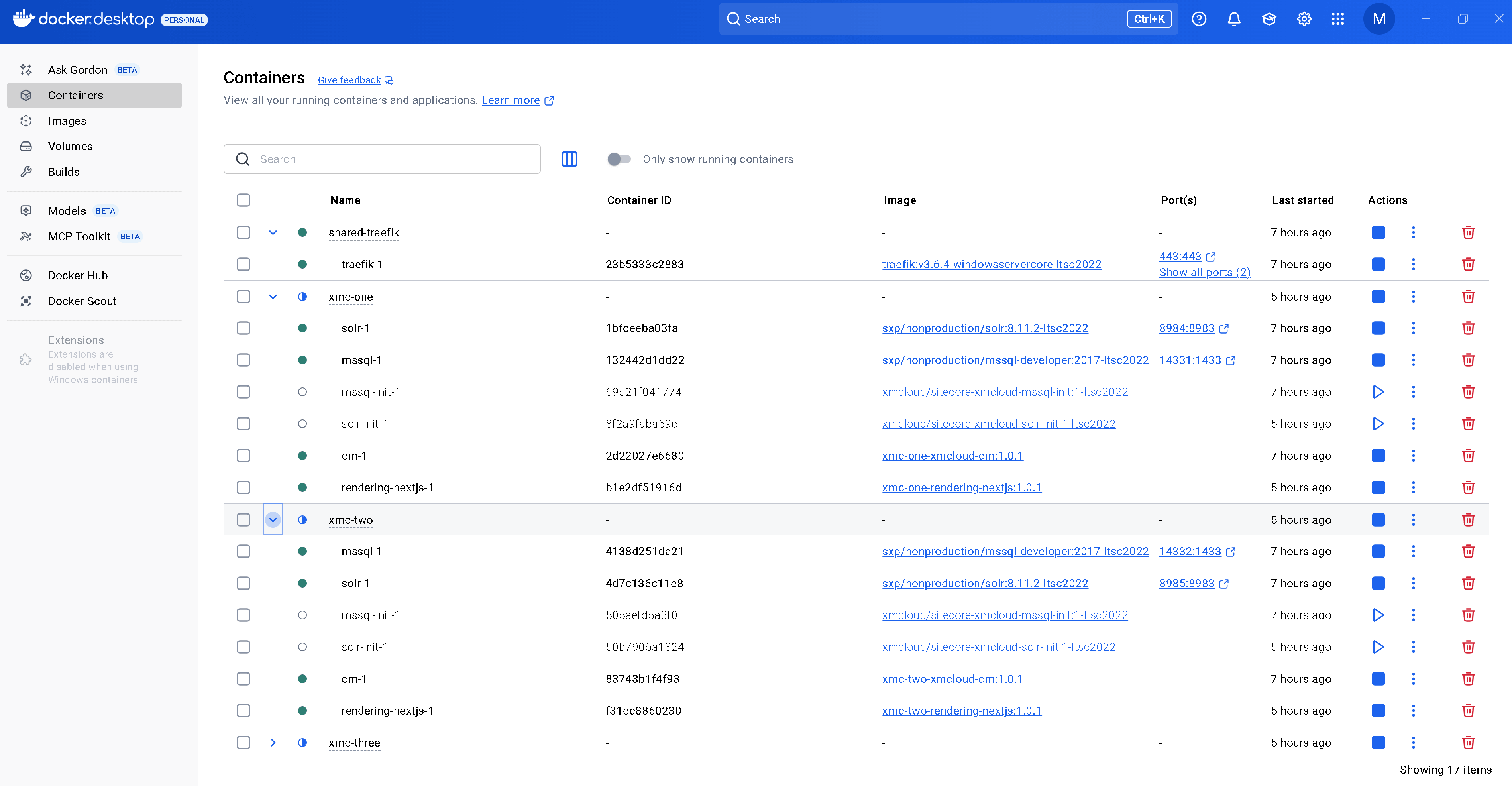
What We Need to Change
The beauty of this solution is how little needs to change. Let me walk through every modification.
Step 1: The Shared Traefik
Create a shared-traefik folder at the root of your multi-docker directory. It gets its own docker-compose.yml:
services:
  traefik:
    isolation: hyperv
    image: traefik:v3.6.4-windowsservercore-ltsc2022
    command:
      - "--ping"
      - "--api.insecure=true"
      - "--providers.docker.endpoint=npipe:////./pipe/docker_engine"
      - "--providers.docker.exposedByDefault=false"
      - "--providers.file.directory=C:/etc/traefik/config/dynamic"
      - "--entryPoints.websecure.address=:443"
      - "--entryPoints.websecure.forwardedHeaders.insecure"
    ports:
      - "443:443"
      - "8079:8080"
    healthcheck:
      test: ["CMD", "traefik", "healthcheck", "--ping"]
    volumes:
      - source: \\.\pipe\docker_engine\
        target: \\.\pipe\docker_engine\
        type: npipe
      - ./traefik:C:/etc/traefik
    networks:
      - traefik-shared

networks:
  traefik-shared:
    name: traefik-shared
    external: true
The key insight here: a single Traefik connects to the Docker engine via a Windows named pipe, enabling it to discover all containers across all Compose projects. It joins the traefik-shared network to actually reach the CM and rendering containers.
Before starting Traefik, create the shared network with the Windows nat driver:
docker network create -d nat traefik-shared
Why nat and not bridge? Windows containers don't support the bridge driver. If you try docker network create traefik-shared without -d nat, you'll get: "could not find plugin bridge in v1 plugin registry". This was one of the first gotchas I ran into.
The TLS config (shared-traefik/traefik/config/dynamic/certs_config.yaml) references wildcard certificates:
tls:
  certificates:
    - certFile: C:\etc\traefik\certs\_wildcard.xmcloudcm.localhost.pem
      keyFile: C:\etc\traefik\certs\_wildcard.xmcloudcm.localhost-key.pem
    - certFile: C:\etc\traefik\certs\_wildcard.xmc-one.localhost.pem
      keyFile: C:\etc\traefik\certs\_wildcard.xmc-one.localhost-key.pem
    - certFile: C:\etc\traefik\certs\_wildcard.xmc-two.localhost.pem
      keyFile: C:\etc\traefik\certs\_wildcard.xmc-two.localhost-key.pem
    - certFile: C:\etc\traefik\certs\_wildcard.xmc-three.localhost.pem
      keyFile: C:\etc\traefik\certs\_wildcard.xmc-three.localhost-key.pem
Step 2: Parameterize the Traefik Labels
This is the most important change to the existing codebase, and also the most subtle.
When Traefik uses the Docker provider, it reads labels from containers to build its routing table. In the stock docker-compose.yml, the CM service has labels like:
- "traefik.http.routers.cm-secure.rule=Host(`${CM_HOST}`)"The router name cm-secure is hardcoded. If three CM containers all define cm-secure, Traefik merges them into a single router with unpredictable results.
The fix is elegant: prefix every router, middleware, and service name with ${COMPOSE_PROJECT_NAME}:
- "traefik.http.routers.${COMPOSE_PROJECT_NAME}-cm-secure.rule=Host(`${CM_HOST}`)"Since each codebase has a unique COMPOSE_PROJECT_NAME in its .env (e.g., xmc-one, xmc-two, xmc-three), the router names become xmc-one-cm-secure, xmc-two-cm-secure, etc. Globally unique. Zero conflicts.
This same change applies to all Traefik label lines in both docker-compose.yml (CM labels) and docker-compose.override.yml (rendering host labels).
I also parameterized the MSSQL and Solr host ports while I was in there:
# Was: "14330:1433"
ports:
  - "${MSSQL_PORT:-14330}:1433"
The :-14330 default means if you don't set MSSQL_PORT, nothing changes. Backward compatible.
Step 3: The Multi-Instance Override
Each codebase gets a docker-compose.multi.yml that does three things:
- Disables the per-codebase Traefik (since the shared one handles everything)
- Connects CM and rendering to the shared Traefik network
- Passes the site name to the rendering container
services:
  traefik:
    deploy:
      replicas: 0

  cm:
    labels:
      - "traefik.docker.network=traefik-shared"
    networks:
      - default
      - traefik-shared

  rendering-nextjs:
    environment:
      NEXT_PUBLIC_DEFAULT_SITE_NAME: ${SITE_NAME:-xmc-one}
    labels:
      - "traefik.docker.network=traefik-shared"
    networks:
      - default
      - traefik-shared

networks:
  traefik-shared:
    name: traefik-shared
    external: true
The traefik.docker.network label is critical - it tells the shared Traefik which network to use when routing to this container. Without it, Traefik might try to route via the wrong network and fail silently.
This file is loaded automatically via the COMPOSE_FILE variable in .env:
COMPOSE_FILE=docker-compose.yml;docker-compose.override.yml;docker-compose.multi.yml
Windows gotcha: The COMPOSE_FILE separator on Windows is ; (semicolon), not : (colon). Using colons causes a cryptic CreateFile ... The filename, directory name, or volume label syntax is incorrect error. This one took me longer to figure out than I'd like to admit.
Step 4: Per-Codebase .env Configuration
Each codebase's .env gets a handful of unique values:
| Variable | codebase-1 | codebase-2 | codebase-3 |
COMPOSE_PROJECT_NAME | xmc-one | xmc-two | xmc-three |
CM_HOST | one.xmcloudcm.localhost | two.xmcloudcm.localhost | three.xmcloudcm.localhost |
RENDERING_HOST_NEXTJS | nextjs.xmc-one.localhost | nextjs.xmc-two.localhost | nextjs.xmc-three.localhost |
MSSQL_PORT | 14331 | 14332 | 14333 |
SOLR_PORT | 8984 | 8985 | 8986 |
SITE_NAME | xmc-one | xmc-two | xmc-three |
Don't forget SITECORE_FedAuth_dot_Auth0_dot_RedirectBaseUrl - it must match the CM hostname, for example:
SITECORE_FedAuth_dot_Auth0_dot_RedirectBaseUrl=https://one.xmcloudcm.localhost/
Step 5: The Hosts File
This is pretty simple - just add these entries to C:\Windows\System32\drivers\etc\hosts:
127.0.0.1	one.xmcloudcm.localhost
127.0.0.1	two.xmcloudcm.localhost
127.0.0.1	three.xmcloudcm.localhost
127.0.0.1	nextjs.xmc-one.localhost
127.0.0.1	nextjs.xmc-two.localhost
127.0.0.1	nextjs.xmc-three.localhost
Step 6: Fix up.ps1
The up.ps1 script has a Traefik health check that uses the hardcoded router name cm-secure@docker. Since we parameterized it, we need to read COMPOSE_PROJECT_NAME and use it:
$composeProjectName = ($envContent | Where-Object {
    $_ -imatch "^COMPOSE_PROJECT_NAME=.+"
}).Split("=")[1]

# Updated health check
$status = Invoke-RestMethod "http://localhost:8079/api/http/routers/$composeProjectName-cm-secure@docker"
And the hardcoded Start-Process https://xmcloudcm.localhost/sitecore/ becomes:
Start-Process "https://$xmCloudHost/sitecore/"
Making the Next.js Rendering Hosts Work
Getting the CM to respond on a subdomain turned out to be the easy part. Wiring up the Next.js rendering hosts - that's where the real fun began.
The "Configuration error" Wall
After the CM instances were humming along on their subdomains, I turned my attention to the rendering hosts. Each codebase's rendering-nextjs container mounts the Next.js app from examples/basic-nextjs and runs npm install && npm run dev as its entrypoint. Simple enough. Except all three containers immediately crashed with:
Error: Configuration error: provide either Edge contextId or
local credentials (api.local.apiHost + api.local.apiKey).
The issue? The stock sitecore.config.ts ships as a bare defineConfig({{}}) - no API configuration at all. This works when you're connecting to XM Cloud Edge in production, but in local Docker mode, the Content SDK's build tools need to know where the CM lives.
The fix is to add the api.local block:
import { defineConfig } from '@sitecore-content-sdk/nextjs/config';

export default defineConfig({
  api: {
    local: {
      apiKey: process.env.SITECORE_API_KEY || '',
      apiHost: process.env.SITECORE_API_HOST || '',
    },
  },
  defaultSite: process.env.NEXT_PUBLIC_DEFAULT_SITE_NAME || 'xmc-one',
  defaultLanguage: 'en',
});
The SITECORE_API_HOST is set to http://cm by the compose override (the internal Docker DNS name for the CM container), and SITECORE_API_KEY comes from the .env file. So far so good.
The "Invalid API Key" Surprise
With the config in place, I restarted the rendering containers. They got further this time - the SDK successfully connected to the CM - but then:
ClientError: Provided SSC API keyData is not valid.
Here's the thing about Sitecore API keys: having a GUID in your .env file isn't enough. That GUID must be registered as an item inside Sitecore's content tree at /sitecore/system/Settings/Services/API Keys/. Without it, Sitecore rejects the key outright.
The standard up.ps1 flow handles this via the Sitecore CLI's serialization push, but since we're running three parallel instances, we need to do it for each:
cd codebase-1
dotnet sitecore cloud login                    # Browser auth required
dotnet sitecore connect --ref xmcloud `
  --cm https://one.xmcloudcm.localhost `
  --allow-write true -n default

& ./local-containers/docker/build/cm/templates/import-templates.ps1 `
  -RenderingSiteName 'xmc-one' `
  -SitecoreApiKey 'c46d10a5-9d62-4aa9-a83d-3e20a34bc981'
This creates the API key item under /sitecore/system/Settings/Services/API Keys/xmc-one with CORS and controller access set to *. The browser login is interactive (Auth0 device flow), but you only need to do it once per codebase.
The "//en" Path Mismatch Mystery
After registering the API keys and restarting the containers, the rendering hosts started successfully. Next.js reported Ready in 6.2s. I opened https://nextjs.xmc-one.localhost/ in the browser, and... "Page not found."
The container logs told the story:
[Error: Requested and resolved page mismatch: //en /en]
GET / 404 in 53ms
That double slash in //en was the clue. The Content SDK's multisite and locale middleware were fighting over path resolution. The locale middleware was adding /en to the path /, but without a defaultSite configured, the multisite resolver was confused about which site to use, producing a mangled double-slash path.
Two changes fixed it:
- Set
defaultSite in sitecore.config.ts (shown above) - this tells the SDK which Sitecore site to resolve by default - Pass
NEXT_PUBLIC_DEFAULT_SITE_NAME as an environment variable to the rendering container via docker-compose.multi.yml
The Hostname Binding
Even with the path mismatch fixed, the rendering host still returned 404. The CM's layout service was responding correctly when queried directly - I verified this with:
curl -sk "https://one.xmcloudcm.localhost/sitecore/api/layout/render/jss?item=/&sc_apikey=&sc_site=xmc-one&sc_lang=en"
That returned valid JSON with the Home page route data. So the CM was fine. The problem was in Sitecore's site resolution.
In the Sitecore Content Editor, each site has a Site Grouping item with a Hostname field. This field tells Sitecore which incoming hostname maps to which site. Without it, when the rendering host queries the CM for layout data, Sitecore doesn't know which site the request is for.
The fix: go to each CM's Content Editor and set the Hostname to the rendering host's domain:
xmc-one site -> Hostname: nextjs.xmc-one.localhostxmc-two site -> Hostname: nextjs.xmc-two.localhostxmc-three site -> Hostname: nextjs.xmc-three.localhost
After that, all three rendering hosts returned HTTP 200, each serving content from their respective Sitecore instance. Three independent XM Cloud stacks, all running in parallel, all on standard HTTPS.
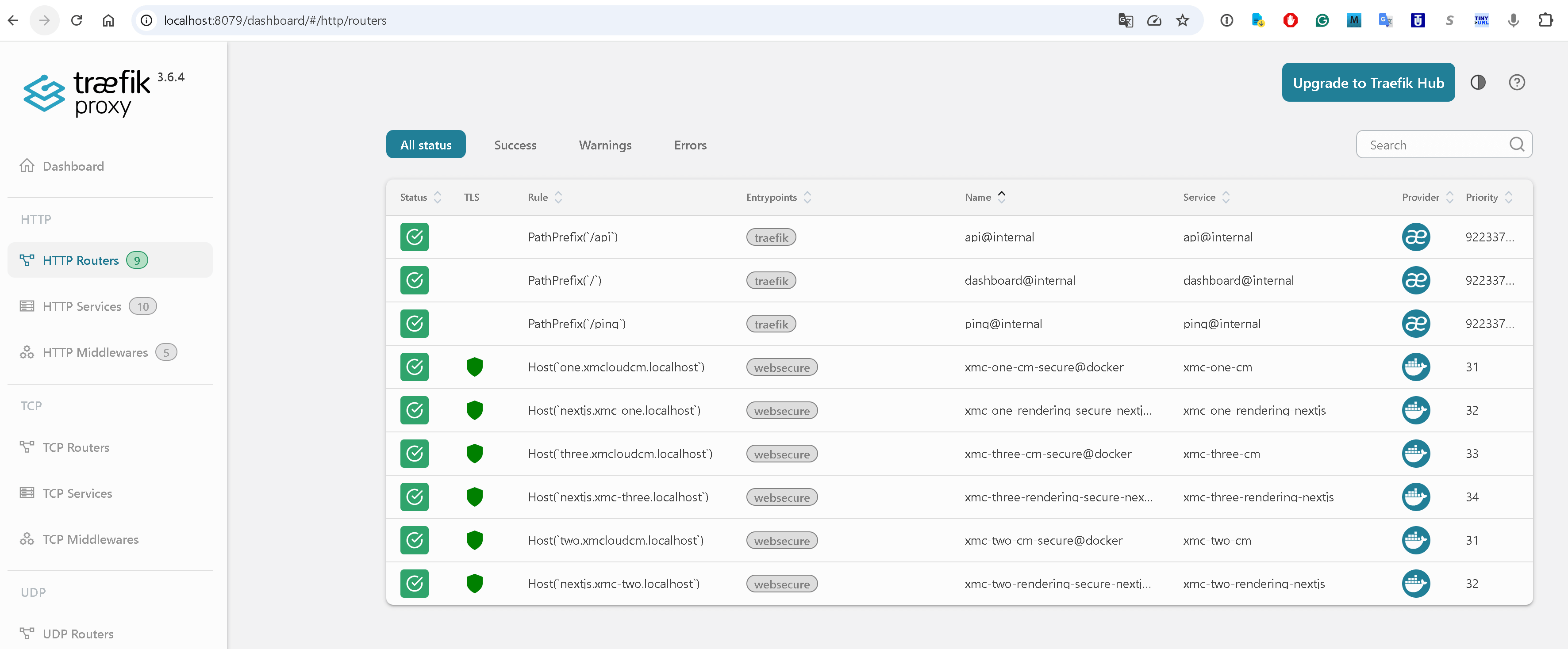
Running It All
First-Time Setup
# Run as Administrator
cd C:\Projects\SHIFT-AI\Multiple-Docker
.\setup-multi.ps1
This creates the Docker network, generates wildcard TLS certificates with mkcert, and updates the hosts file.
Then initialize each codebase (if not already done):
cd codebase-1\local-containers\scripts
.\init.ps1 -InitEnv -LicenseXmlPath C:\License\license.xml -AdminPassword "YourPassword"
# Repeat for codebase-2 and codebase-3
Daily Usage
# Start everything
.\start-all.ps1

# Start just one codebase
.\start-all.ps1 -Codebases @("codebase-2")

# Stop everything
.\stop-all.ps1

# Stop codebases but keep Traefik running (faster restarts)
.\stop-all.ps1 -KeepTraefik
Post-Startup: Register API Keys and Create Sites
After the CMs are healthy, you need to register the API keys and create sites with hostname bindings (see the sections above). This is a one-time step per codebase.
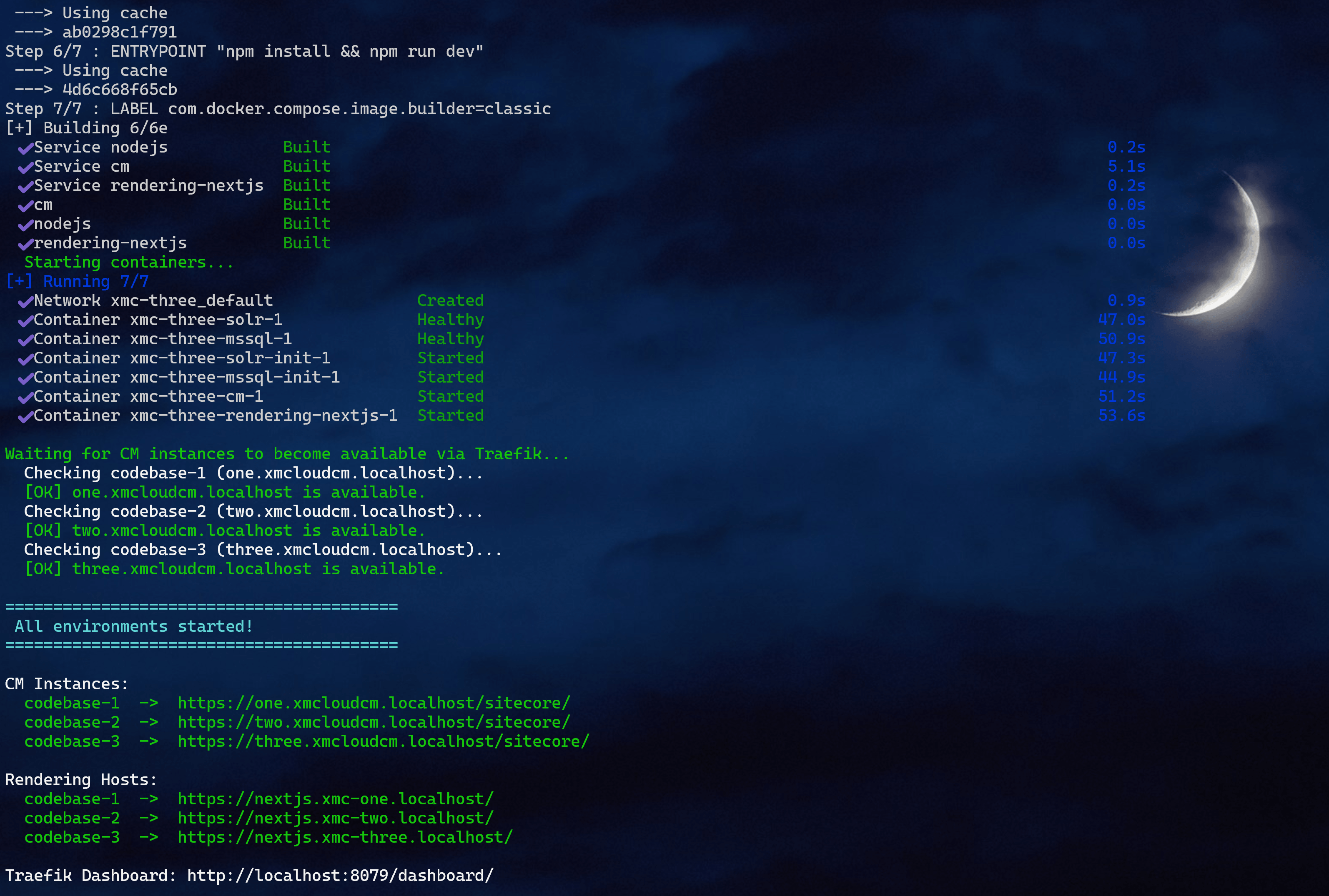
Verifying It Works
Check the Traefik Dashboard
Open http://localhost:8079/dashboard/. You should see six routers - two per codebase (CM + rendering), each with its unique name prefix.
Hit Each CM Instance
https://one.xmcloudcm.localhost/sitecore/ -> Auth0 login redirecthttps://two.xmcloudcm.localhost/sitecore/ -> Auth0 login redirecthttps://three.xmcloudcm.localhost/sitecore/ -> Auth0 login redirect
Hit Each Rendering Host
https://nextjs.xmc-one.localhost/ -> Site home page (HTTP 200)https://nextjs.xmc-two.localhost/ -> Site home page (HTTP 200)https://nextjs.xmc-three.localhost/ -> Site home page (HTTP 200)
All three should serve their respective Sitecore site content, each powered by an independent CM, MSSQL, and Solr instance.
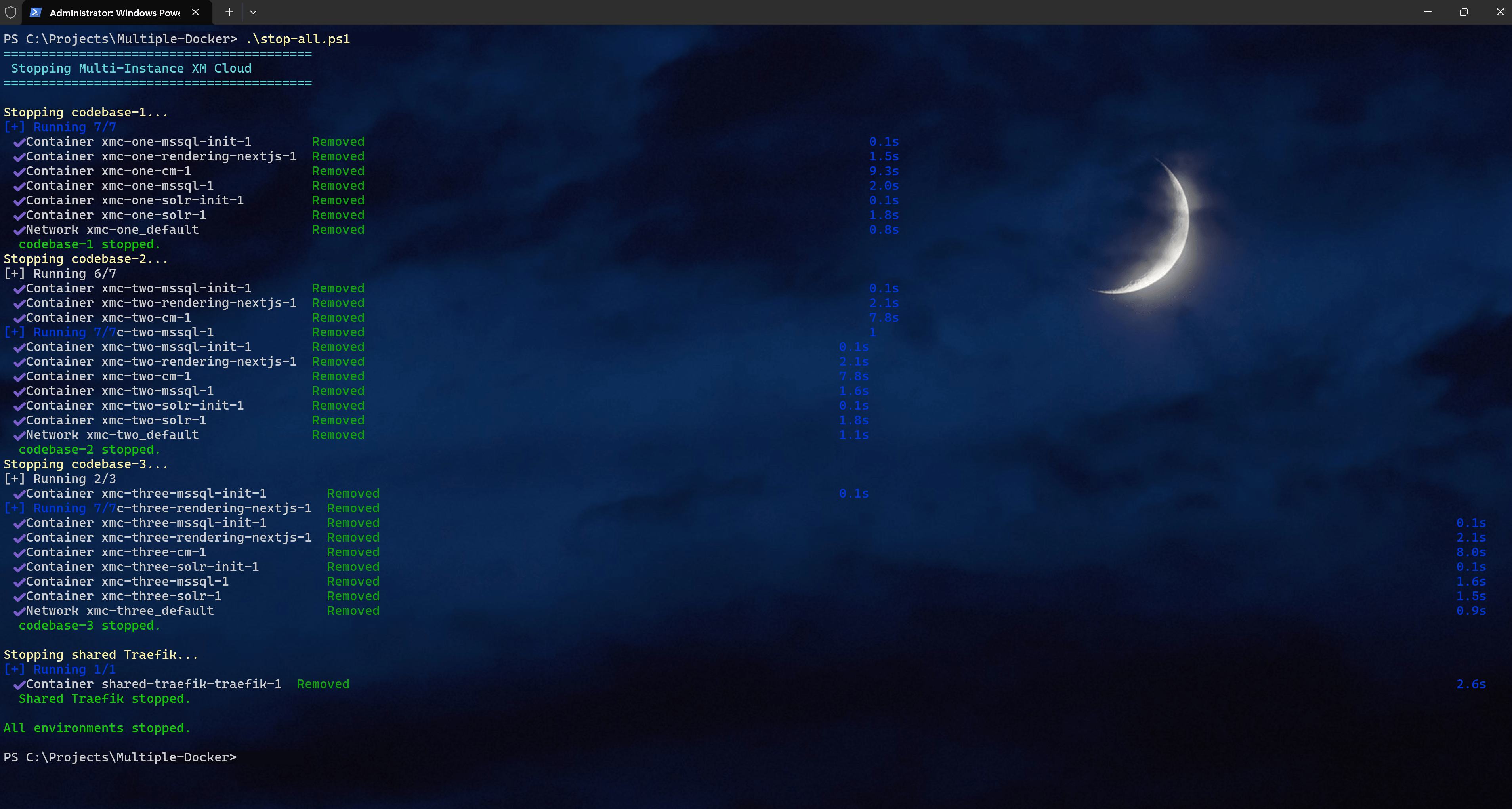
Lessons Learned
Windows Docker networking has its own rules. Networks must use nat. A container can't reliably join multiple nat networks. I originally designed three separate Traefik networks for strict isolation but had to collapse them into one shared nat network. In practice, only CM and rendering containers join the shared network - MSSQL and Solr stay isolated on their project-default networks.
COMPOSE_FILE uses semicolons on Windows. The Linux docs show COMPOSE_FILE=a.yml:b.yml:c.yml. On Windows, it's a.yml;b.yml;c.yml. Using colons produces a cryptic CreateFile ... volume label syntax error that doesn't immediately suggest a separator issue.
Traefik label naming is global. This was the non-obvious gotcha. When Traefik uses the Docker provider, router names are global across all containers it discovers. Two containers defining the same router name creates a conflict that Traefik resolves silently (and wrongly). Prefixing with ${COMPOSE_PROJECT_NAME} is a pattern I'll use in every multi-project Docker setup from now on.
Docker Compose labels merge, they don't replace. When you override a service in a compose override file, labels from the base file persist. You can add new labels but can't remove old ones. This is why the parameterization approach (changing the base file) is cleaner than trying to override labels.
sitecore.config.ts needs explicit local API config. The stock defineConfig({{}}) assumes Edge mode. For local Docker development, you must specify api.local.apiKey and api.local.apiHost. The Content SDK's build tools (sitecore-tools project build) fail at startup without them.
defaultSite prevents the //en path mismatch. Without it, the multisite and locale middlewares can't agree on path resolution, producing //en instead of /en. This manifests as every page returning 404 even though the CM has valid content. Setting defaultSite in the config and passing NEXT_PUBLIC_DEFAULT_SITE_NAME as an environment variable resolved this instantly.
API keys must be registered in Sitecore, not just in .env. Having a GUID in SITECORE_API_KEY_APP_STARTER is necessary but not sufficient. The GUID must exist as a Sitecore item under /sitecore/system/Settings/Services/API Keys/. The import-templates.ps1 script + dotnet sitecore ser push handles this.
Sitecore sites need hostname bindings. Even with correct API keys and config, the rendering host gets 404 until the site's Hostname field in Sitecore matches the rendering host's domain. The CM's layout service uses this to resolve which site a request belongs to.
What Could Be Simplified Further
- Template-driven .env generation: A script that generates
.env files for N codebases, not just three.
- Compose profiles: Instead of
deploy.replicas: 0, use Docker Compose profiles to toggle between standalone and multi-instance modes.
- Single-codebase fallback: Remove the
COMPOSE_FILE line from .env to revert any codebase to standalone mode instantly.
- Automated API key registration: A script that generates, registers, and configures the API key for each codebase in one step.
The total delta is about 10 lines changed per codebase in the Docker compose files, a sitecore.config.ts update, and a handful of new infrastructure files at the root. Not bad for what felt like an impossible requirement.
If you've been juggling multiple XM Cloud projects and constantly stopping and starting Docker environments, I hope this saves you some time and frustration. Drop a comment if you've found other approaches or run into edge cases - I'd love to hear about them.
GitHub (not fully operable, must be fine-tuned in some way)