If you have ever tried to run SitecoreAI containers locally and hit the Docker Desktop licensing wall, you are not alone. Docker Desktop requires a paid subscription for organizations with more than 250 employees or an annual revenue of more than $10 million. That forces a question: can you run the XM Cloud local container stack without Docker Desktop at all?
The short answer is yes, but the full picture is more nuanced. I went through Sitecore's official documentation, the starter kit repositories, and every community walkthrough I could find to map out what is actually supported, what is community-derived, and where the gaps are.
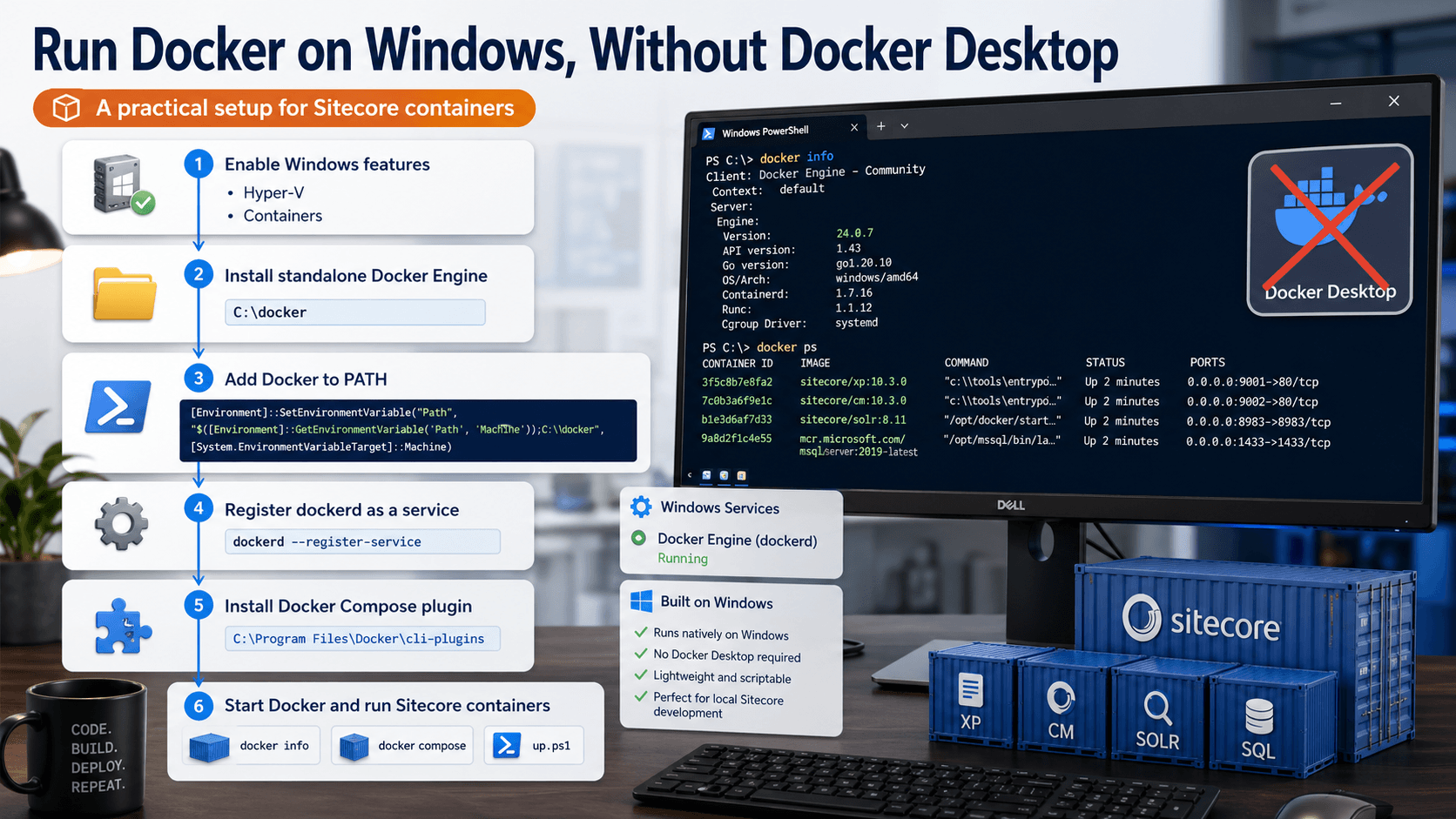
The approach is to install and run the standalone Docker Engine directly as a Windows service, then use Docker Compose from the CLI plugin path that modern Docker tooling expects. This is useful when Docker Desktop is unavailable, undesired, restricted by licensing, or unstable in a local Sitecore development environment.
1. Already got Docker Desktop? Remove it first
If Docker Desktop is already installed, stop it first. If you are replacing it entirely, uninstall Docker Desktop before installing the standalone Docker Engine.
You may also want to clean old Docker resources before continuing, especially if your Windows container layers have grown very large.
A related cleanup approach from Vikrant Punwatkar’s Docker cleanup guidance uses a longer shutdown timeout for Docker daemon cleanup:
dockerd -D --shutdown-timeout 900
This can help when Docker needs more time to clean large Windows container layers.
2. Enable required Windows features
If you used Docker Desktop previously, you'll likely have the following features available; if not, run PowerShell as Administrator:
Enable-WindowsOptionalFeature -Online -FeatureName Microsoft-Hyper-V -All
Enable-WindowsOptionalFeature -Online -FeatureName containers -All
Restart Windows if prompted.
Both Hyper-V and Containers are commonly required for Windows container development.
3. Download standalone Docker Engine for Windows
Run PowerShell as Administrator:
curl.exe -o docker.zip -LO https://download.docker.com/win/static/stable/x86_64/docker-20.10.13.zip
Extract it:
Expand-Archive docker.zip -DestinationPath C:\
After extraction, Docker binaries should be available under:
C:\docker
4. Add Docker to PATH
Run this as a single line in Administrator PowerShell:
[Environment]::SetEnvironmentVariable("Path", "$([Environment]::GetEnvironmentVariable('Path', 'Machine'));C:\docker", [System.EnvironmentVariableTarget]::Machine)
Then refresh the current shell session path:
$env:Path = [System.Environment]::GetEnvironmentVariable("Path", "Machine")
Close and reopen PowerShell if docker is still not recognized.
5. Register Docker daemon as a Windows service
Register Docker Engine as a Windows service:
dockerd --register-service
Start the Docker service:
Start-Service docker
Verify Docker is running:
docker version
docker info
Test a basic container run:
docker run hello-world
6. Install Docker Compose v2 CLI plugin
Create the Docker CLI plugin directory:
New-Item -ItemType Directory -Force -Path "C:\Program Files\Docker\cli-plugins"
Download Docker Compose v2:
curl.exe -L "https://github.com/docker/compose/releases/download/v2.18.1/docker-compose-windows-x86_64.exe" -o "C:\Program Files\Docker\cli-plugins\docker-compose.exe"
We also need adding it to PATH by using the below PowerShell in admin mode;
$d='C:\Program Files\Docker\cli-plugins'; $m=((([Environment]::GetEnvironmentVariable('Path','Machine') -split ';') | ? { $_ -and $_ -ne "$d\docker-compose.exe" -and $_ -ne $d } | select -Unique) + $d) -join ';'; [Environment]::SetEnvironmentVariable('Path',$m,'Machine'); $env:Path=$m
Verify Compose:
docker compose version
docker-compose version
The important path is:
C:\Program Files\Docker\cli-plugins\docker-compose.exe
This path allows docker compose to work as a Docker CLI plugin.
7. Configure Docker daemon if needed
Create or edit this file:
C:\ProgramData\docker\config\daemon.json
A safe baseline configuration for many Sitecore Windows container setups is:
{
  "experimental": true,
  "features": {
    "buildkit": false
  }
}
Restart Docker after changing daemon configuration:
Restart-Service docker
For Sitecore projects, experimental: true may be needed when the solution mixes Windows and Linux containers. This is common in some older Sitecore container setups.
8. Stop local IIS and Solr before starting Sitecore containers
Local IIS or Solr services can conflict with Sitecore container ports.
Stop IIS:
iisreset /stop
If you have a local Solr Windows service installed, stop it from services.msc, or stop it by service name if you know it:
Stop-Service -Name "solr-*"
If that wildcard does not match your service, list services first:
Get-Service *solr*
9. Run your Sitecore project
From the project root, the command depends on the project structure.
For many SitecoreAI local container setups that may look as below.
If you have not run it ever before, you must initialize it first:
cd .\local-containers\scripts
.\init.ps1 -InitEnv -LicenseXmlPath C:\Projects\license.xml -AdminPassword b -baseOs ltsc2022
Then just run the main script:
.\local-containers\scripts\up.ps1
Now sit comfortable, grab your coffee and wait until it pulls all the required images and runs:
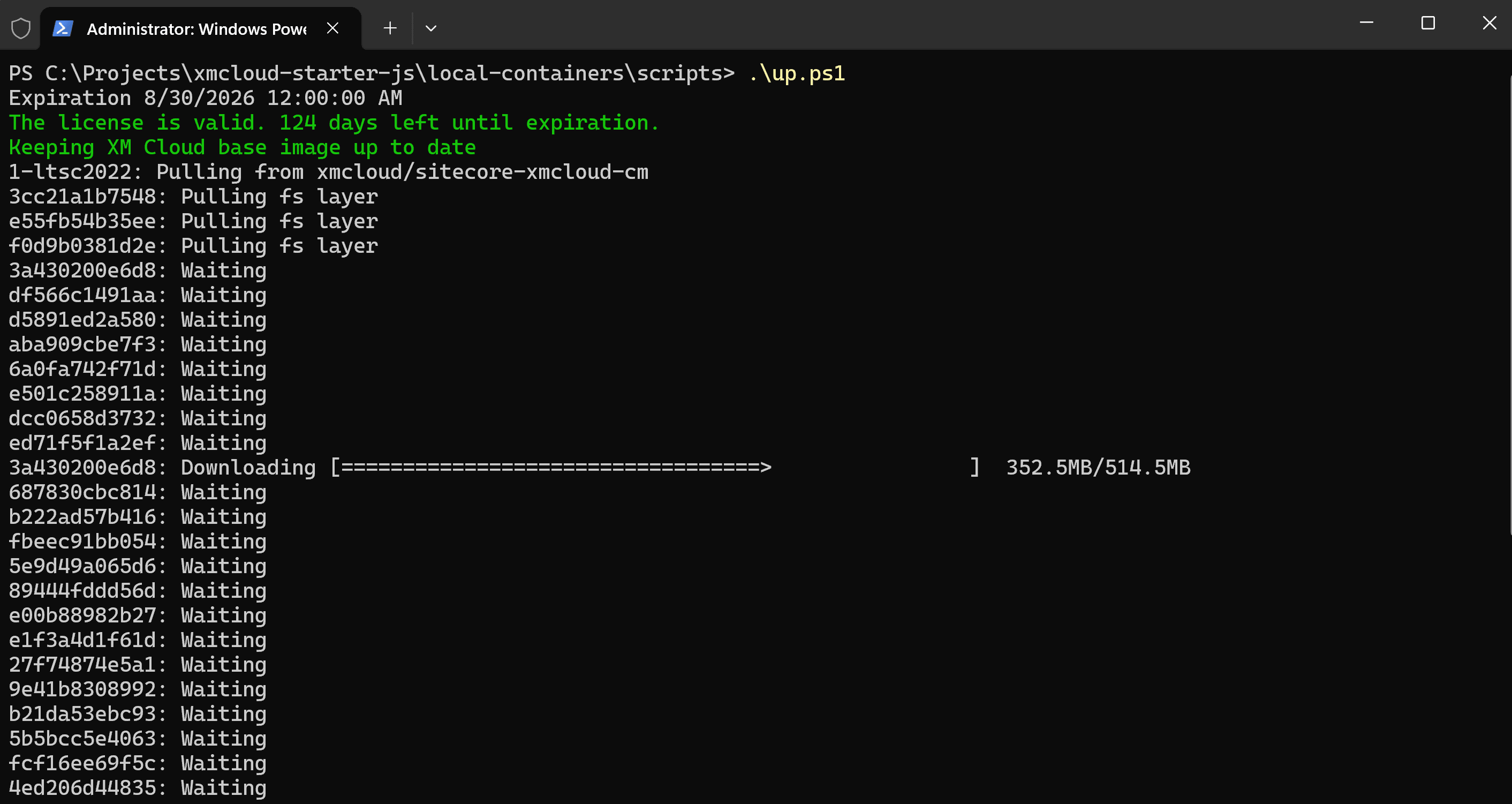
Typical Sitecore local container startup scripts may do several things:
- Pull or update images
- Build custom images
- Configure hosts file entries
- Start Docker Compose services
- Start the CM container
- Install Sitecore CLI plugins
- Populate Solr schemas
- Rebuild indexes
- Push serialized items
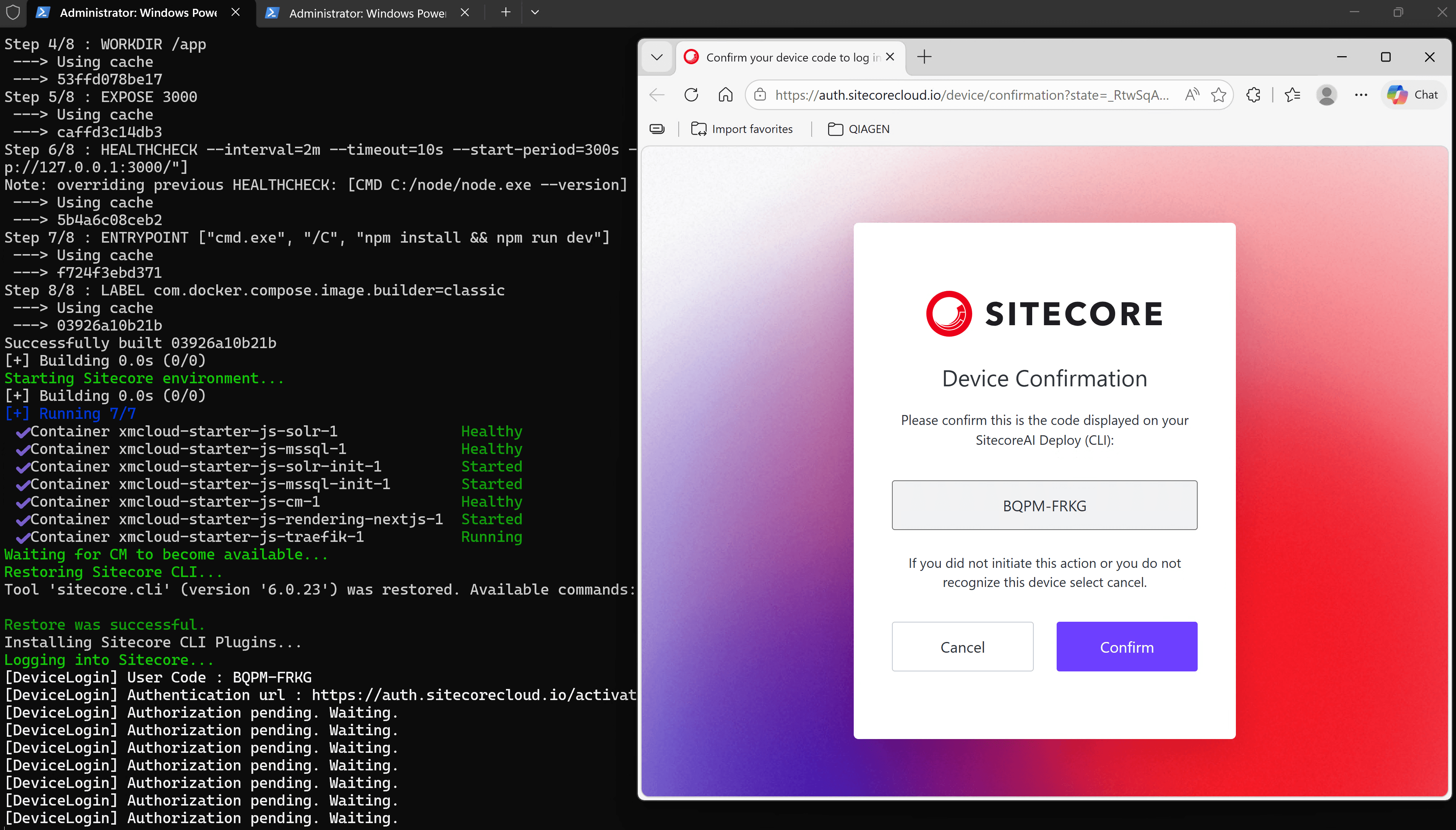
At the end, you will see SitecoreAI authentication screen in a browser:
Troubleshooting checklist
Before going into specific issues, I just want to advise you to check if you're running scripts in the admin mode - that is especially crucial on the corporate and enterprise restricted machines.
Docker service does not start
Check the service:
Get-Service docker
Start-Service docker
Check Docker info:
docker info
If Docker fails with references to panic.log, try removing this file and starting Docker again:
Remove-Item "C:\ProgramData\docker\panic.log" -Force
Start-Service docker
Docker command is not recognized
Confirm Docker is in the machine PATH:
[Environment]::GetEnvironmentVariable("Path", "Machine")
Confirm the binary exists:
dir C:\docker\docker.exe
Refresh current PowerShell PATH:
$env:Path = [System.Environment]::GetEnvironmentVariable("Path", "Machine")
Docker Compose is not recognized
Confirm the plugin exists:
dir "C:\Program Files\Docker\cli-plugins\docker-compose.exe"
Verify Compose:
docker compose version
Ports are already in use
Check common Sitecore container ports:
netstat -ano | findstr ":443"
netstat -ano | findstr ":8079"
netstat -ano | findstr ":8984"
netstat -ano | findstr ":14330"
If IIS is using port 443:
iisreset /stop
Windows container layers consume too much disk space
Windows container layers can accumulate under Docker’s storage folders, especially after repeated Sitecore container rebuilds.
Common cleanup commands:
docker system df
docker system prune -a
For stubborn Windows layer cleanup, a longer Docker daemon shutdown timeout may help:
dockerd -D --shutdown-timeout 900
Use caution when manually deleting Docker layer folders. Prefer Docker’s own cleanup commands first.